Zapier Action: Opt-In Contact
Use the Textiful Opt-In a New Contact action in Zapier to opt in a contact so they can receive your texts in future.
Use Zapier to opt in a new contact to your Textiful account. This lets the contact receive text messages from your organization in the future.
Video tutorial
This video walks through adding the Opt-In a New Contact action to a Zap.
Opt in a new contact and send a message
To add a new contact and send them a confirmation message in a single step, use Zapier Action: Send Text Message to Single Contact.
Set up the Opt-In Contact action
-
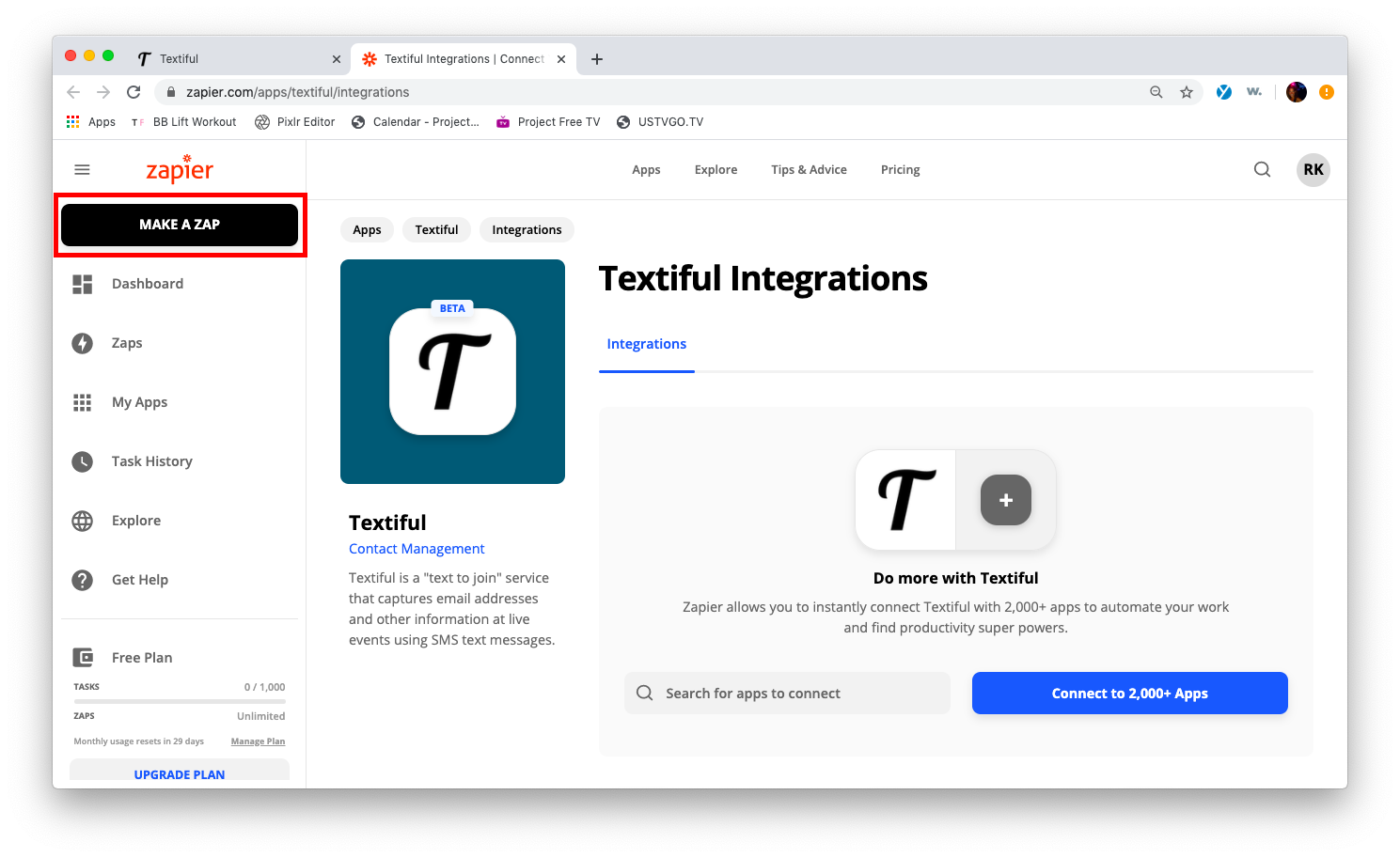
Click Make a Zap in the top-left corner of the page.
-
Add a new action to your Zap.
-
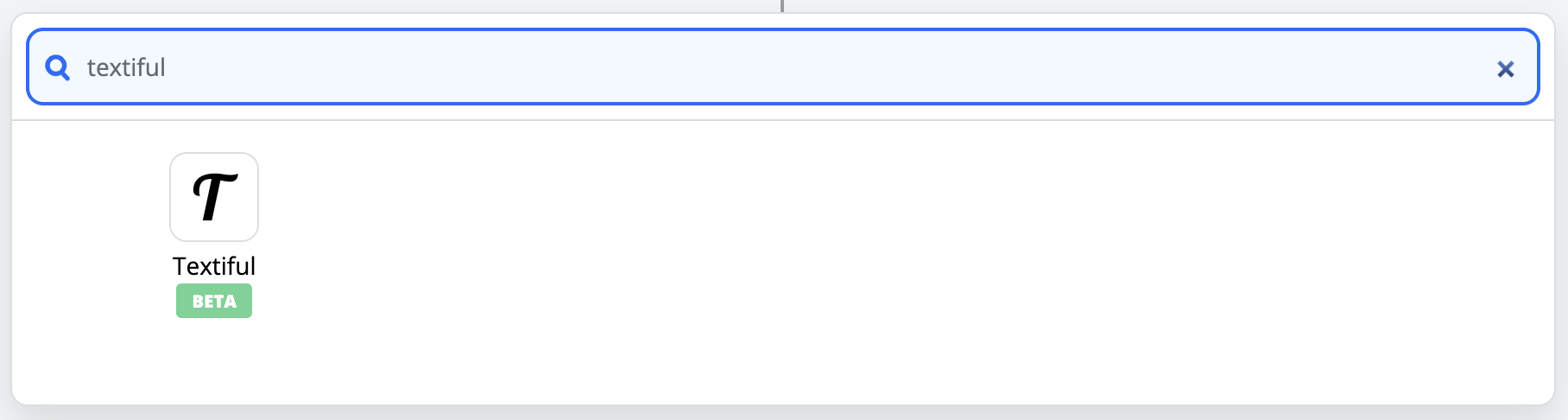
Search for or select Textiful under Choose App & Event and click Continue.
-
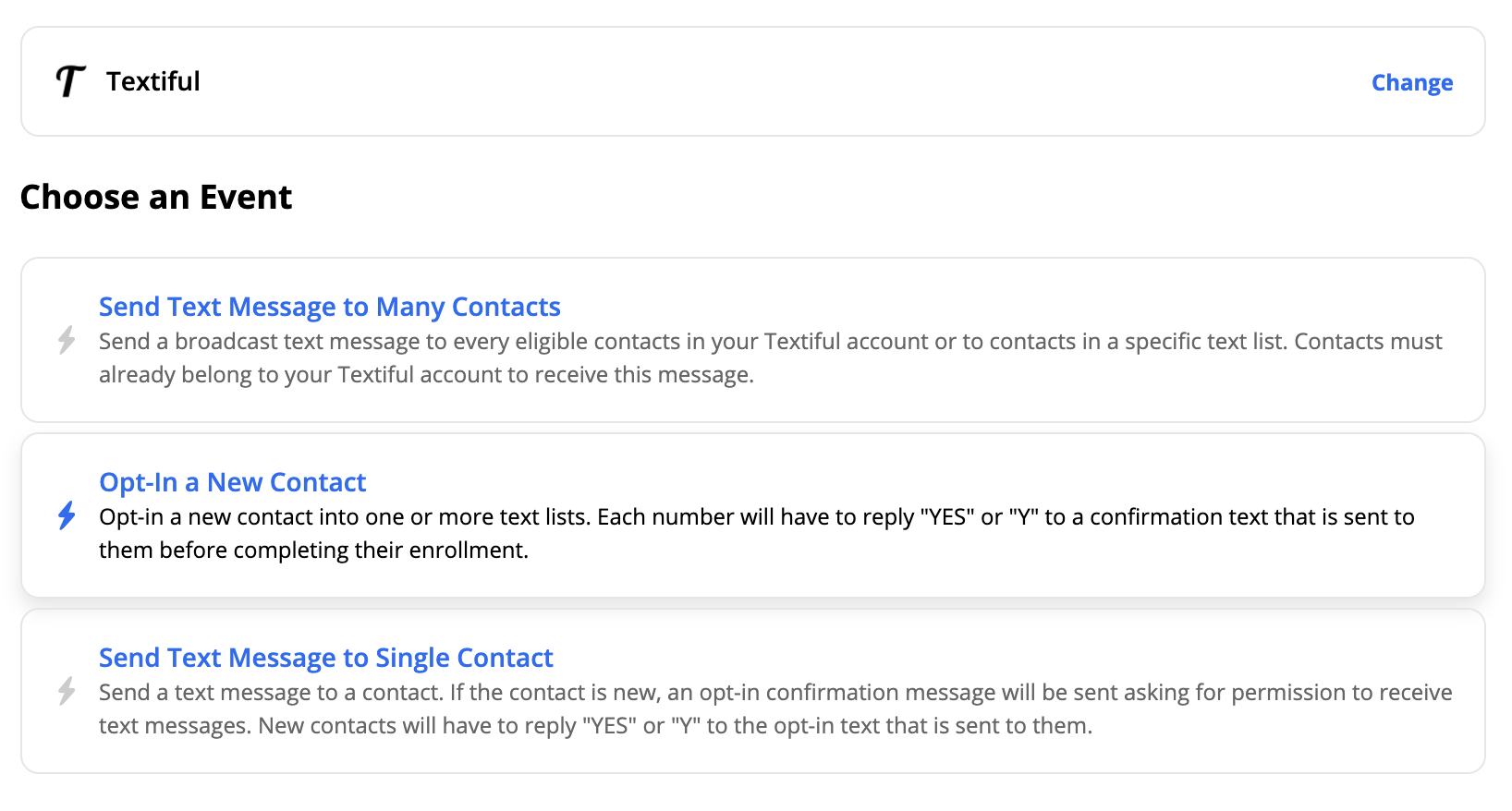
Select the Opt-In a New Contact option.
-
Select your Textiful account and click Continue. If you aren't logged in to Textiful yet, you may be asked to log in, and a pop-up may ask you to authorize Zapier to connect to Textiful.
-
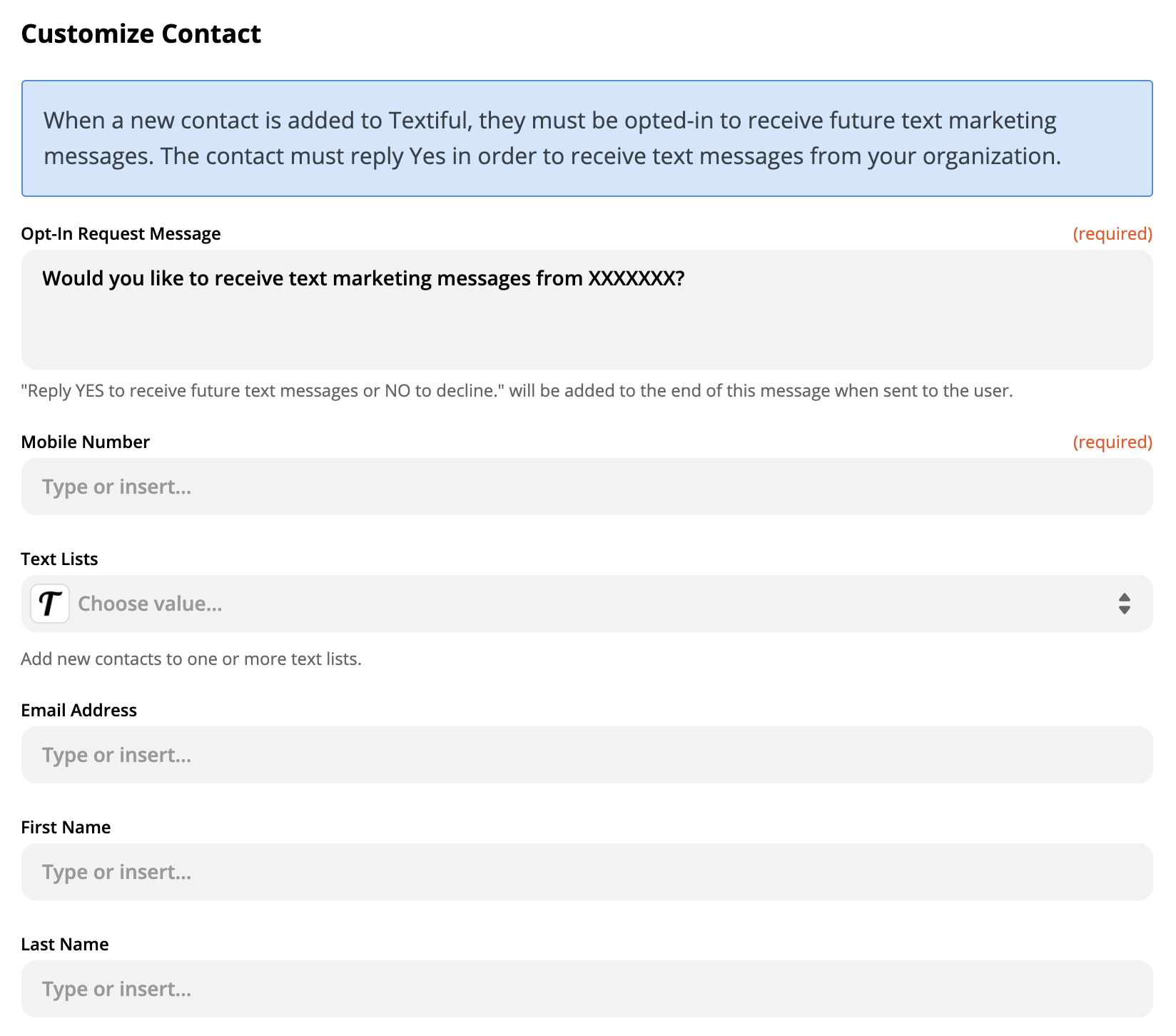
Customize the opt-in request message and mobile number.