Sending a broadcast message
Step-by-step instructions for writing, personalizing, targeting, testing, and sending or scheduling a broadcast message.
Broadcast messages let you send a message to all or several of your contacts at once. Keep your audience up to date on upcoming events, new products, VIP discounts, and more. Recipients can reply individually and can't see each other. With Textiful, you can personalize your text, add an image, schedule your message for later, and more.
Send a broadcast message
-
Click Broadcast Message in the left menu.
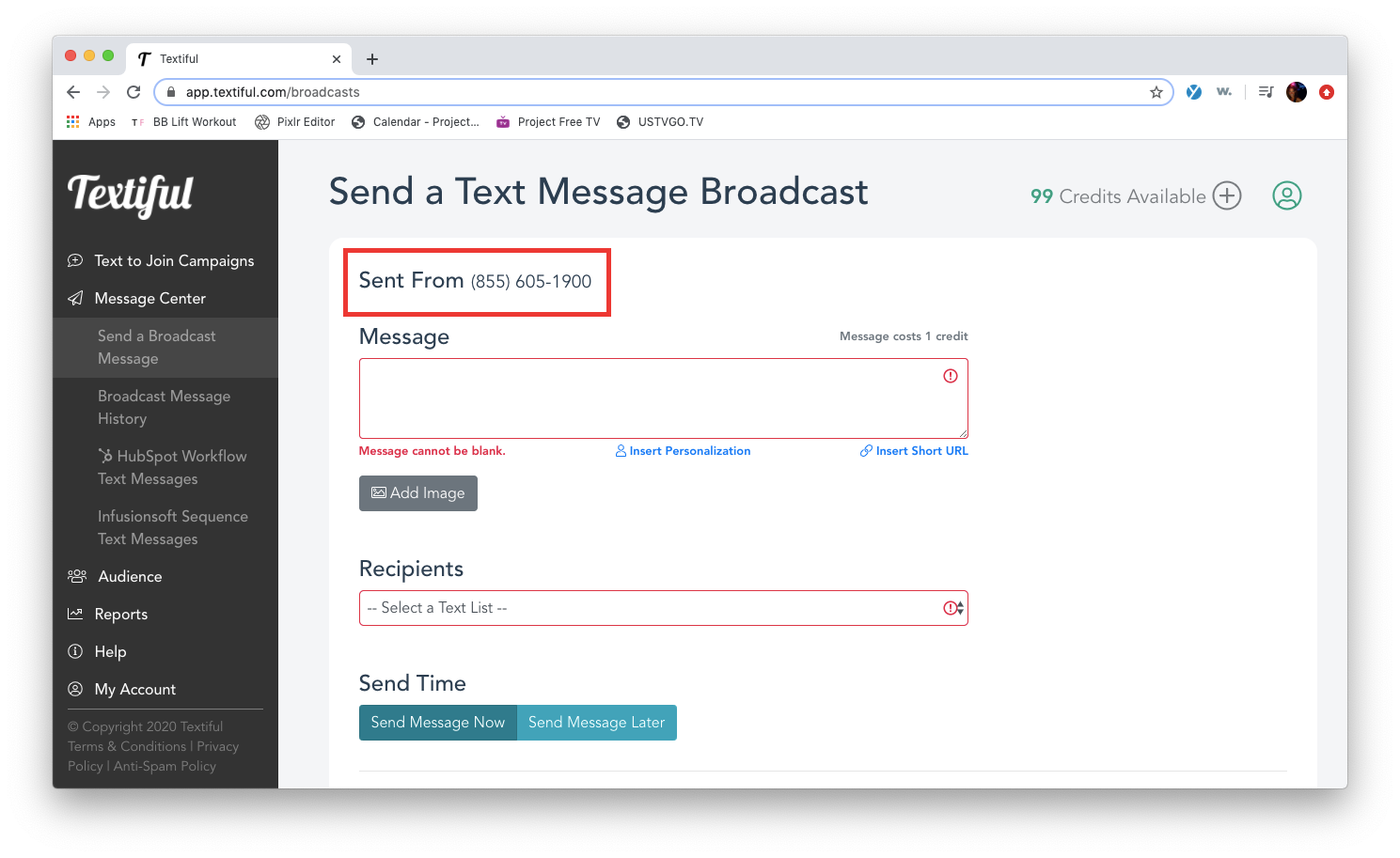
At the top of the Send a Text Message Broadcast page, you can see the phone number the message is sent from. Messages are sent from a dedicated toll-free number assigned to your account, or you can text-enable an existing landline number. Learn more about choosing your texting number.
-
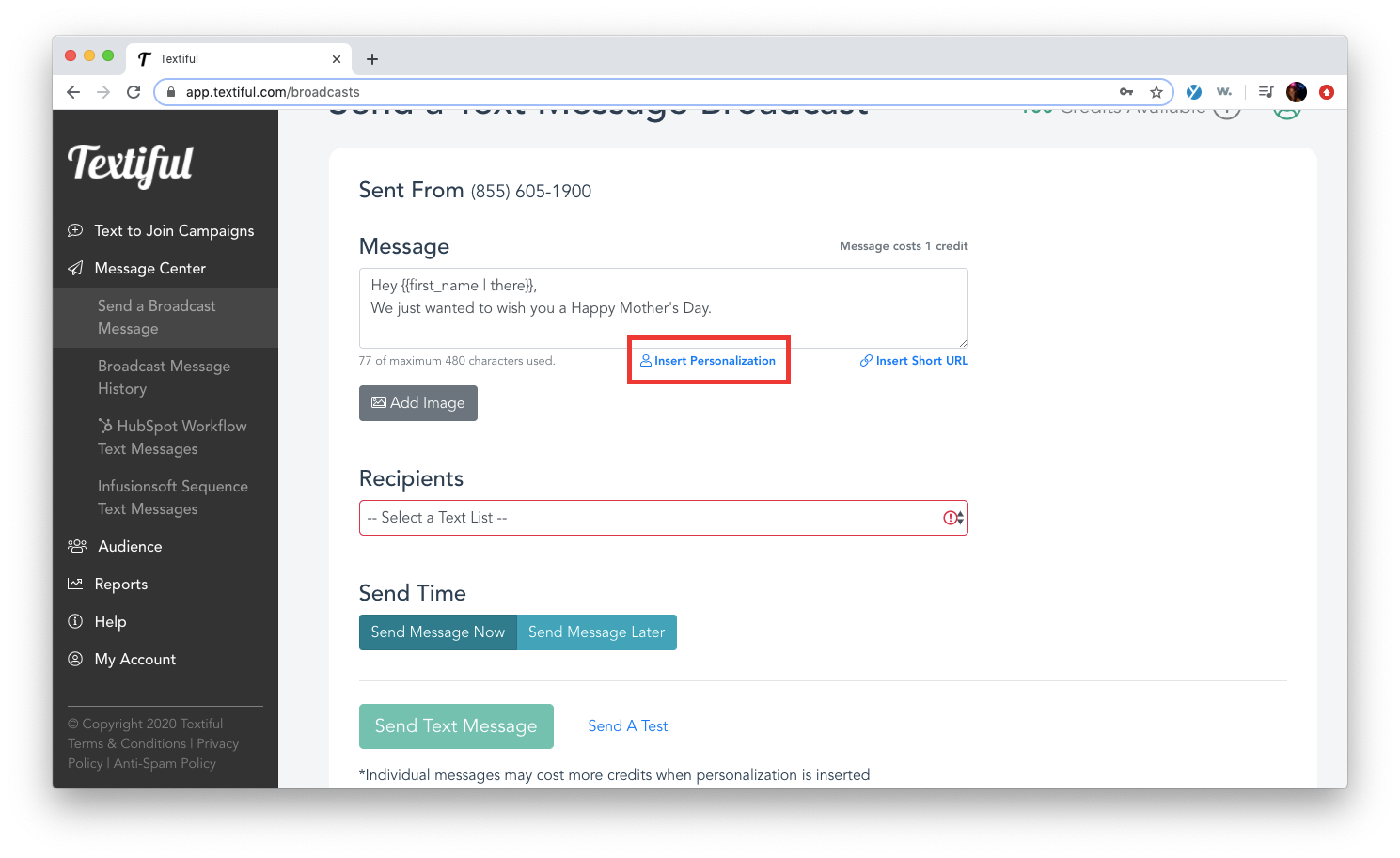
Click the Message field and type your message.
-
Click Insert Personalization to add a personal touch. Textiful can capture customer data such as first and last name, and you can insert that information into your text. Learn more about using merge tags.
-
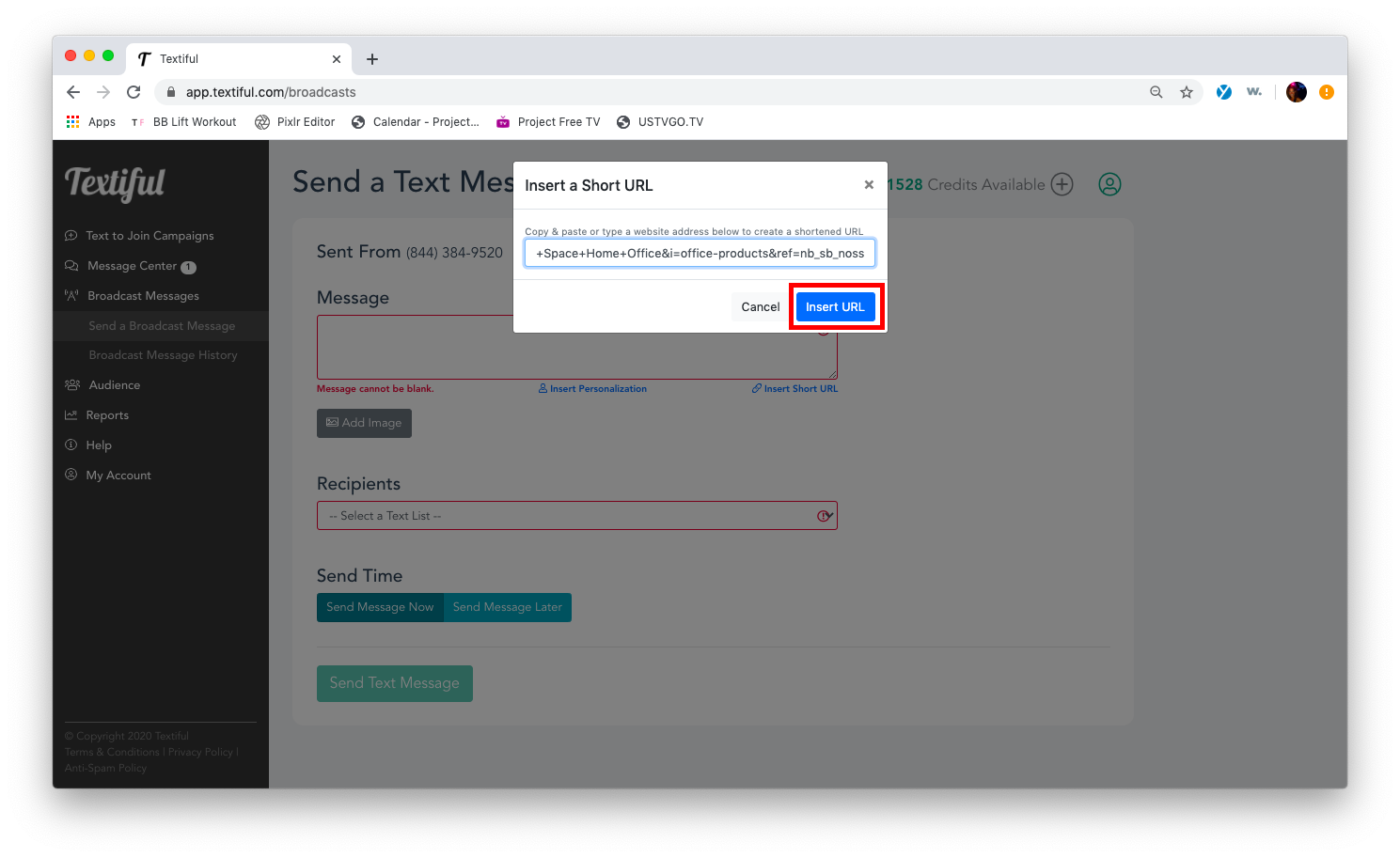
Click Insert Short URL to paste a link and turn it into a short URL. Long links, such as product pages, use up a lot of characters, so it's best to shorten them. We recommend using our URL shortener to avoid carriers flagging your message as spam and not delivering it.
-
-
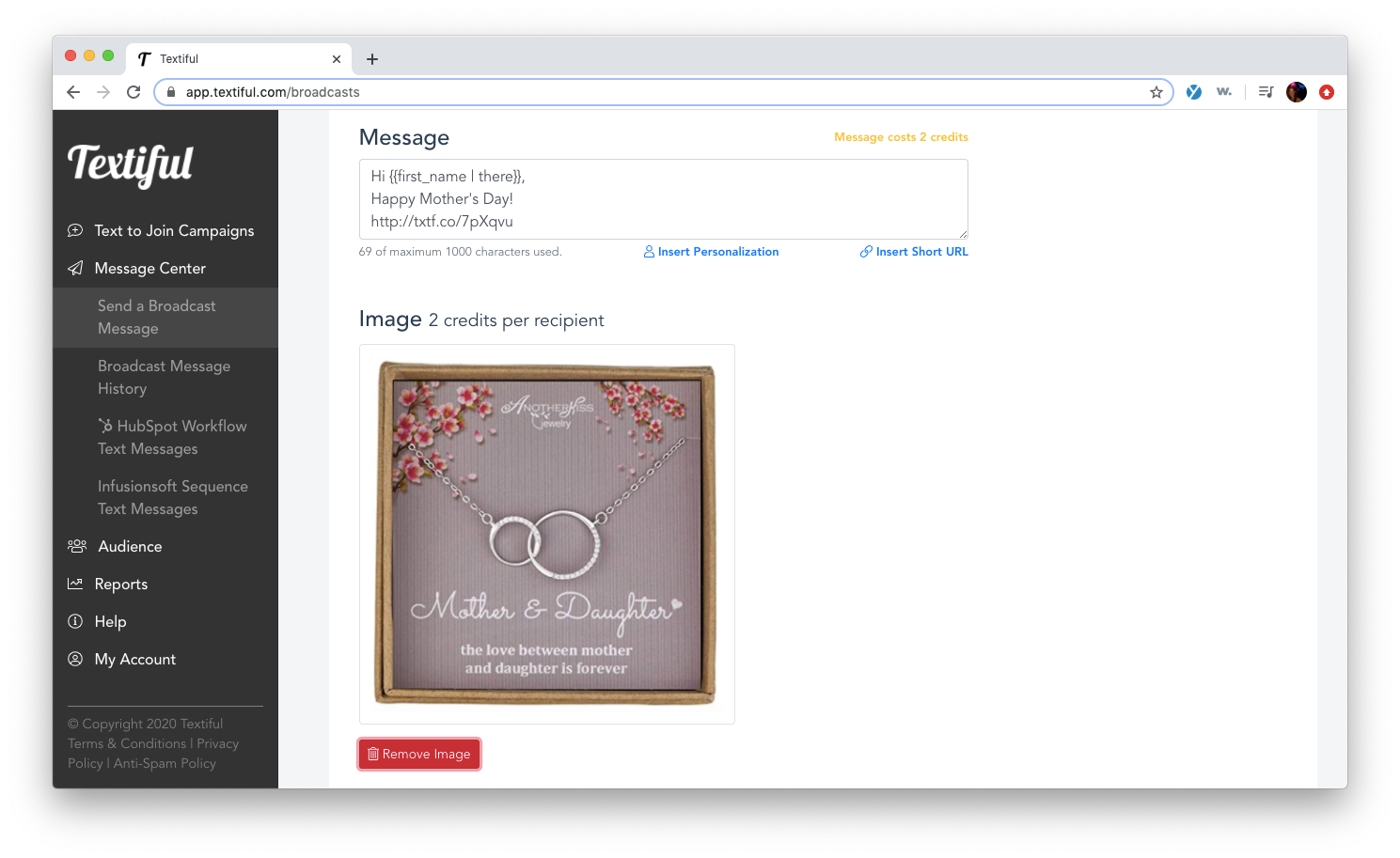
Click Add Image to upload an image and see a preview. Click Browse to choose the image.
-
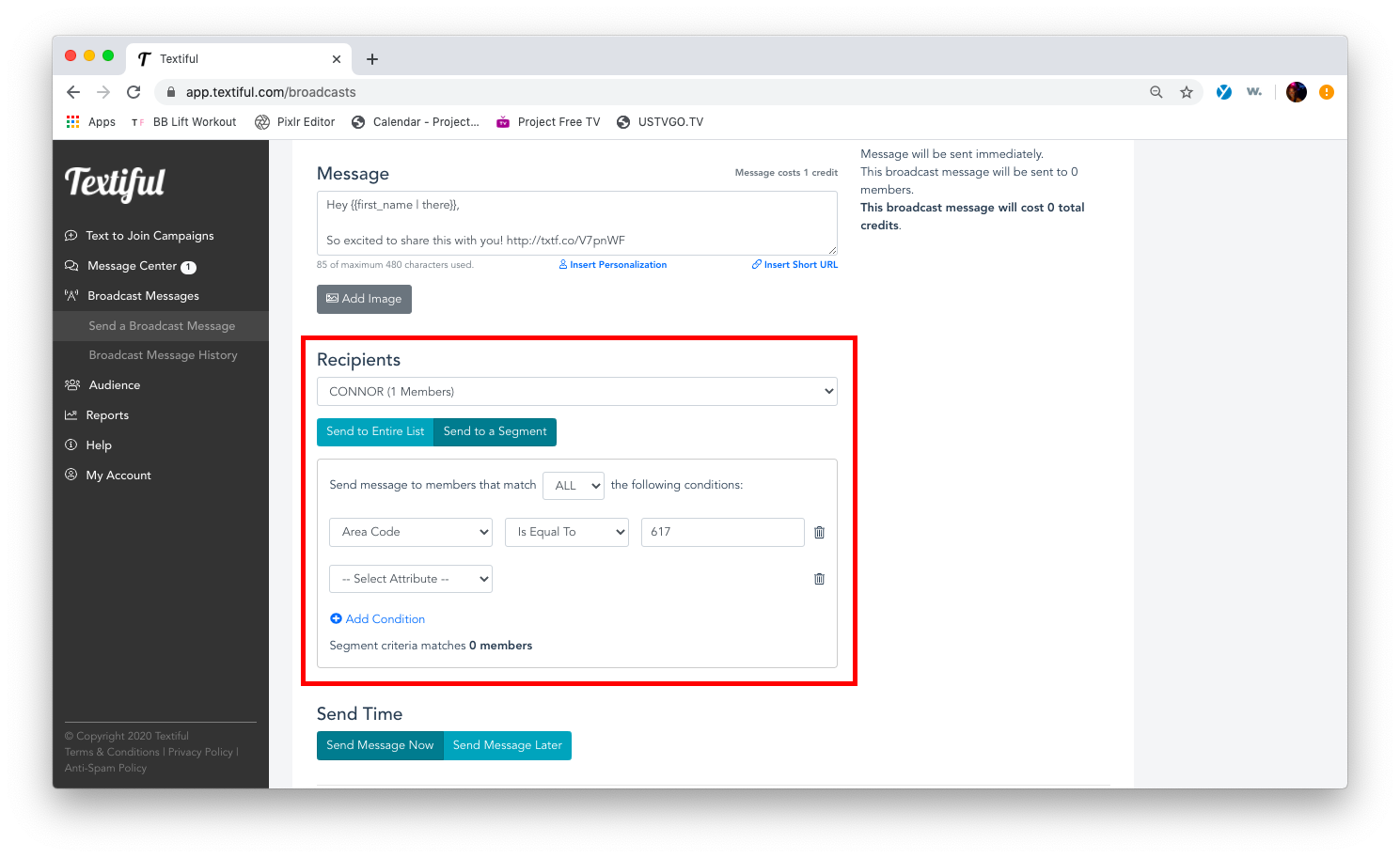
Click the Recipients field to select the texting list that will receive the message.
-
To send your message to only part of your list, click Send to a Segment, then Add Condition to apply filters.
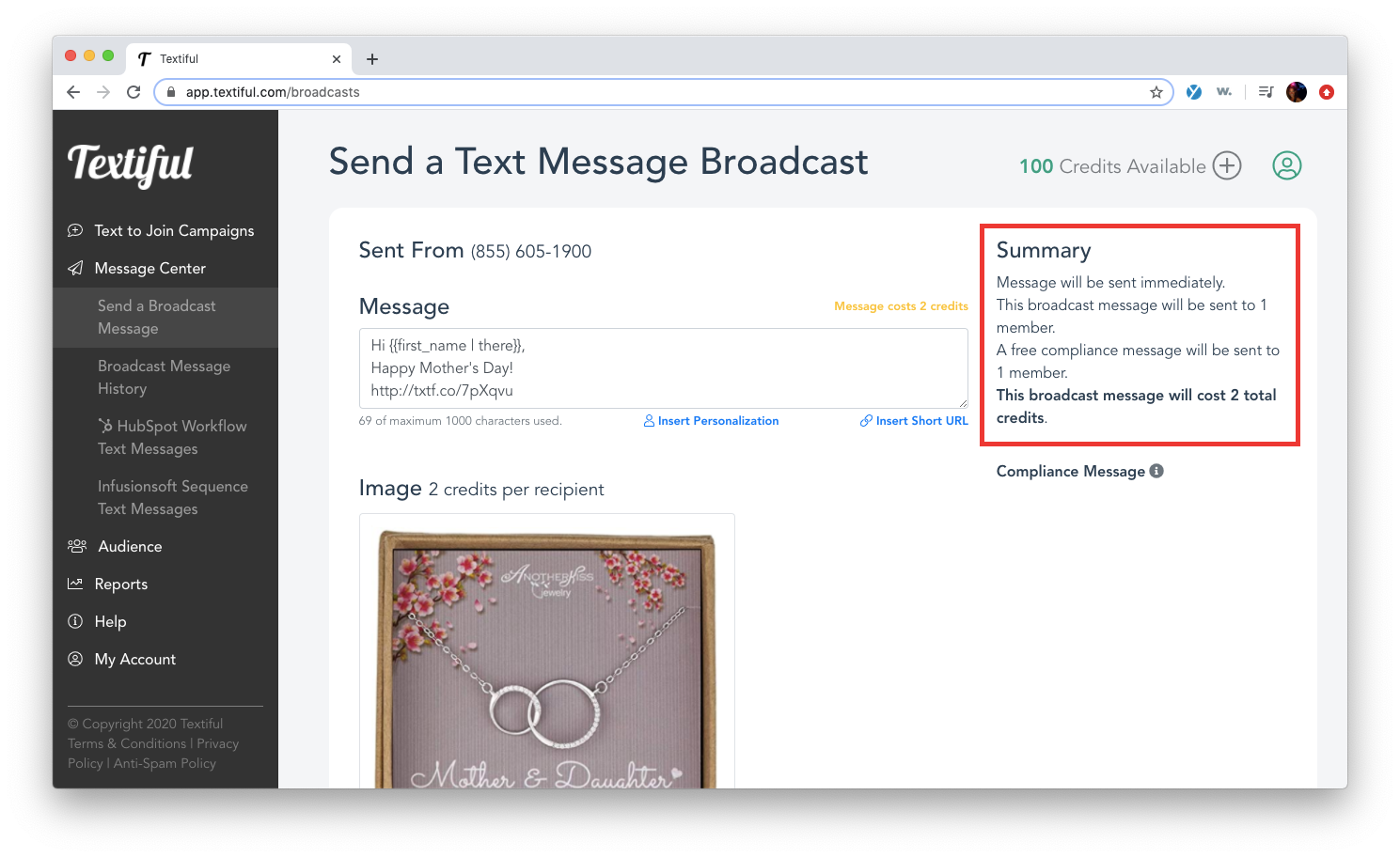
Once you've added recipients, a summary of your broadcast message is displayed, including:
- The number of recipients
- The number of compliance messages that will be sent
- The number of credits the broadcast message will cost
-
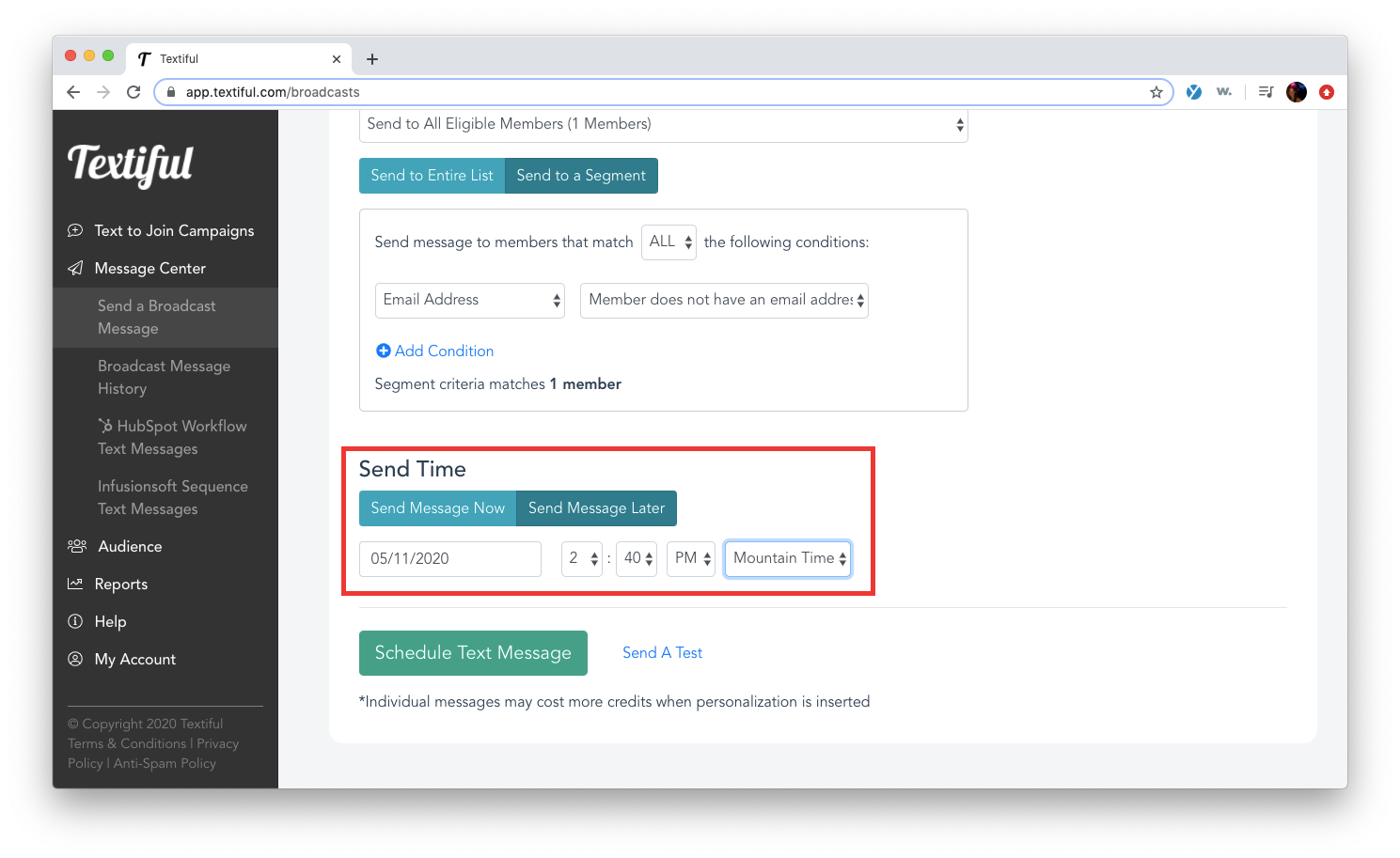
Click Send Message Now to send immediately, or Send Message Later to schedule it. Learn more about scheduling your broadcast message.
-
(Optional) Click Send a Test and enter your phone number to send yourself a test and check how it looks on a phone before it goes to your subscribers.
-
Click Send Text Message when you're done. If you're sending later, the button reads Schedule Text Message.
-
Your message summary pops up. Click Send Text Message again to confirm.