Connect Keap
Click Connect Keap under Settings > Integrations and allow access, then add an Add to Keap step to a flow to tag people and start your Keap sequences.
Connect Keap (formerly Infusionsoft) under Settings > Integrations by signing in and allowing access. Then add an Add to Keap step to a flow, after the email question. Everyone who reaches that step is added to Keap, with the tags and sequences you choose.
Steps
Connect Keap
-
In Textiful, go to Settings > Integrations.
-
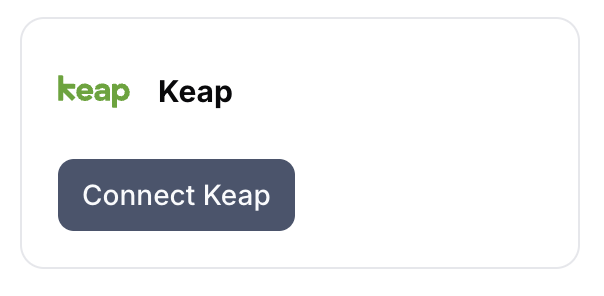
Under CRM and email tools, find Keap and click Connect Keap.
-
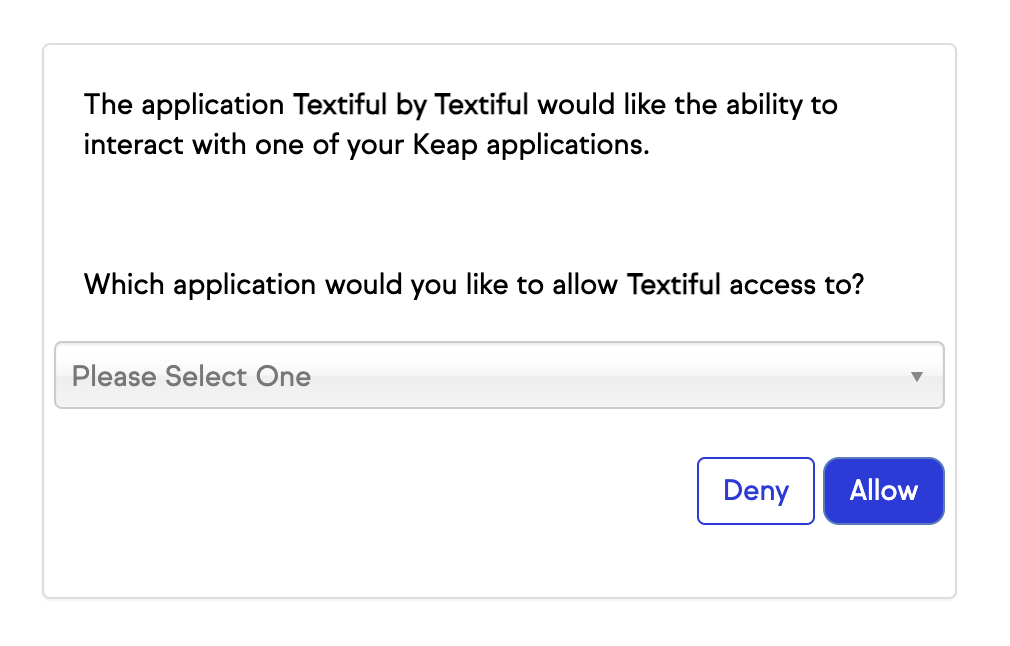
Sign in to Keap if it asks. Under Which application would you like to allow Textiful access to?, choose your Keap app, and click Allow.
-
You're taken back to Textiful and see "Keap connected."
Add the step to a flow
- Open the flow under Data Capture Flows.
- Make sure the flow has an Ask for email step.
- Click the + below that step (or Add a step), and under Integrations choose Add to Keap.
- Under Sync additional data, check which Textiful fields go to which Keap fields. The step starts with the ones your flow collects, such as First name, Last name, and Phone number to Mobile phone, plus city, state and zip if the flow asks for a zip code. Click Add data mapping to send another answer to one of your Keap custom fields, or the bin icon to stop sending one.
- Optionally, choose tags under Add tags to contacts in Keap.
- Optionally, choose sequences under Start Keap sequences.
- Click Add & save.
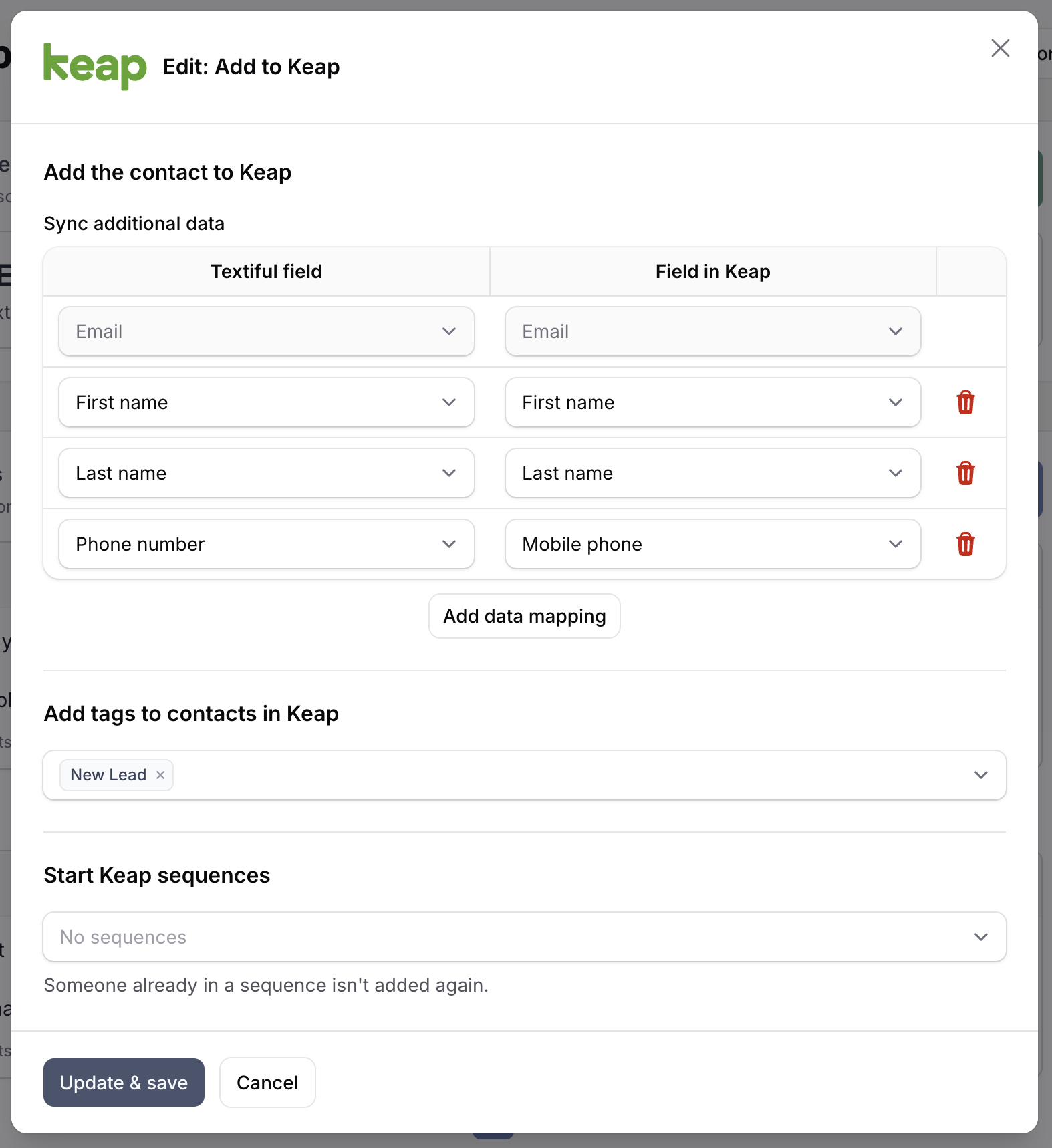
Tags, sequences and custom fields are listed by name from your Keap account. To use a new one, create it in Keap first. Only sequences in published campaigns are listed.
What gets sent
The step runs when someone reaches it. Textiful finds them in Keap by email address, or adds them if they're new.
- Their details: email address, which always syncs, and every field mapped under Sync additional data, such as first and last name, mobile phone, city, state, zip and your custom fields. A field they haven't given you is left as it is in Keap.
- Opt-in: new contacts are marked as opted in through text message. Anyone already in Keap keeps their own opt-in status.
- Tags: added after the contact is saved, so a Keap campaign that starts on a tag runs for them. Tags they already have are kept.
- Sequences: after the tags, they're put in the sequences you chose, even if they haven't reached the campaign's own goal. Someone already in a sequence isn't added again.
Frequently asked questions
- Is Keap the same as Infusionsoft?
- Yes. Infusionsoft is now called Keap. Connect it the same way.
- Do I need an API key for Keap?
- No. Click Connect Keap in Textiful, sign in to Keap, choose your Keap app and click Allow. There's nothing to copy or paste.
- Are new contacts opted in?
- Yes. Textiful marks new contacts as opted in, with the reason "Customer opted in through text message". Anyone already in Keap keeps their own opt-in status, so someone who opted out stays opted out.
- Why can't I map an answer to some of my custom fields?
- A Keap custom field that holds a user, a social security number or drilldown choices can't be filled from a text answer, so those fields aren't listed.
- How do I start a Keap campaign for the people who text in?
- Either start the campaign from a tag being applied and choose that tag under Add tags to contacts in Keap, or choose the campaign's sequence under Start Keap sequences.