Connect MailerLite
Generate an API token in MailerLite, paste it under Settings > Integrations, then add an Add to MailerLite step to a flow to add people to your groups and start automations.
Connect MailerLite with an API token under Settings > Integrations. Then add an Add to MailerLite step to a flow, after the email question. Everyone who reaches that step is added to MailerLite, with the groups, fields and automations you choose.
Steps
Create an API token in MailerLite
-
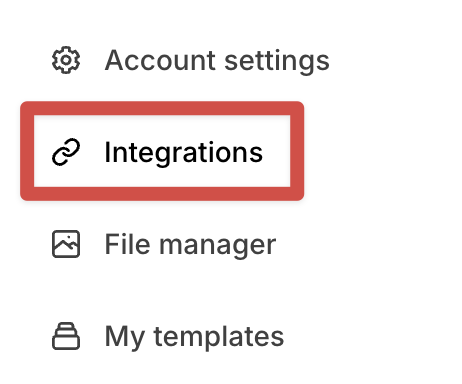
In MailerLite, open the menu and click Integrations.
-
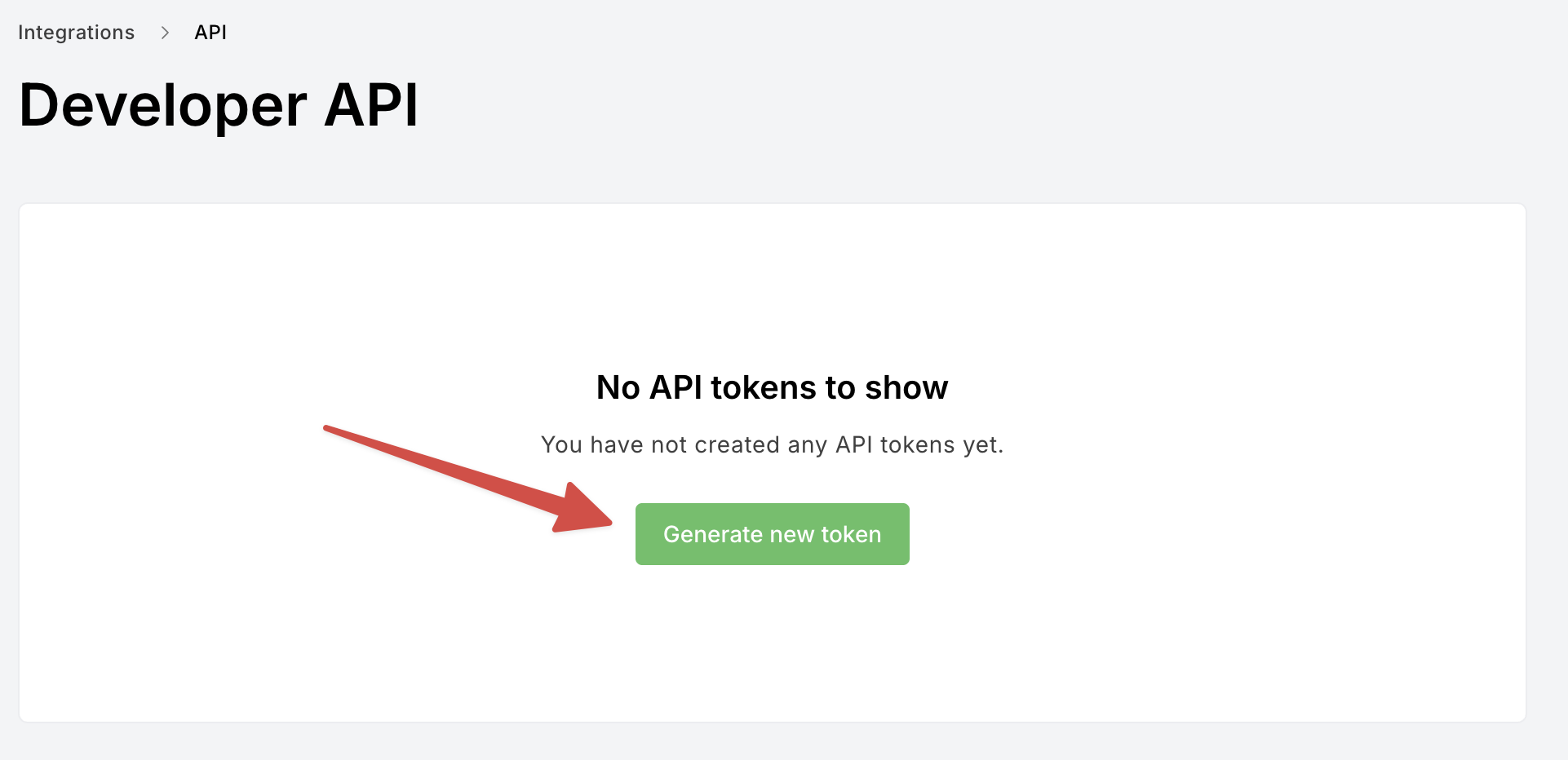
Open API. On the Developer API page, click Generate new token.
-
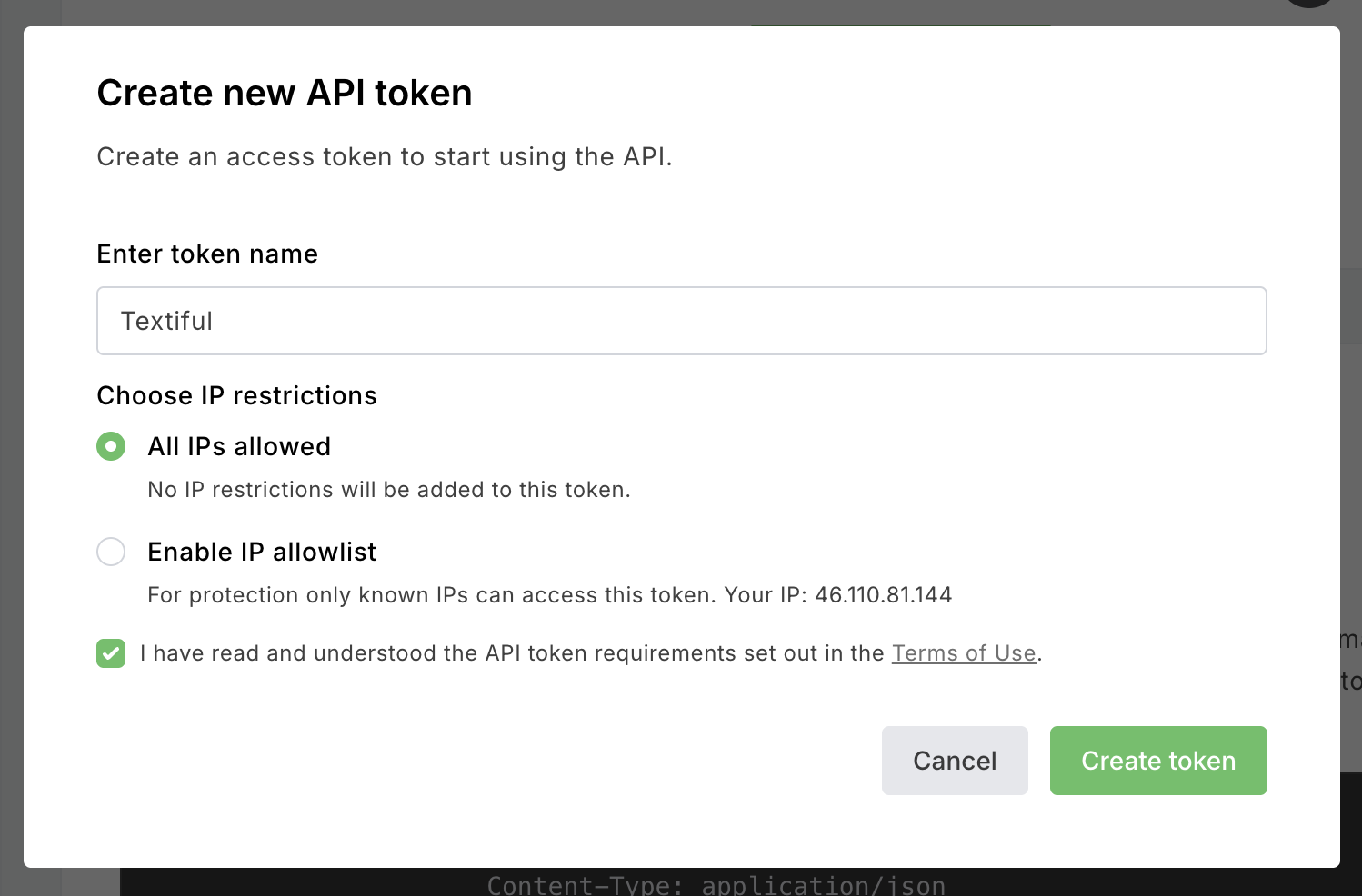
Name the token Textiful, keep All IPs allowed, tick the box to accept the terms, and click Create token.
-
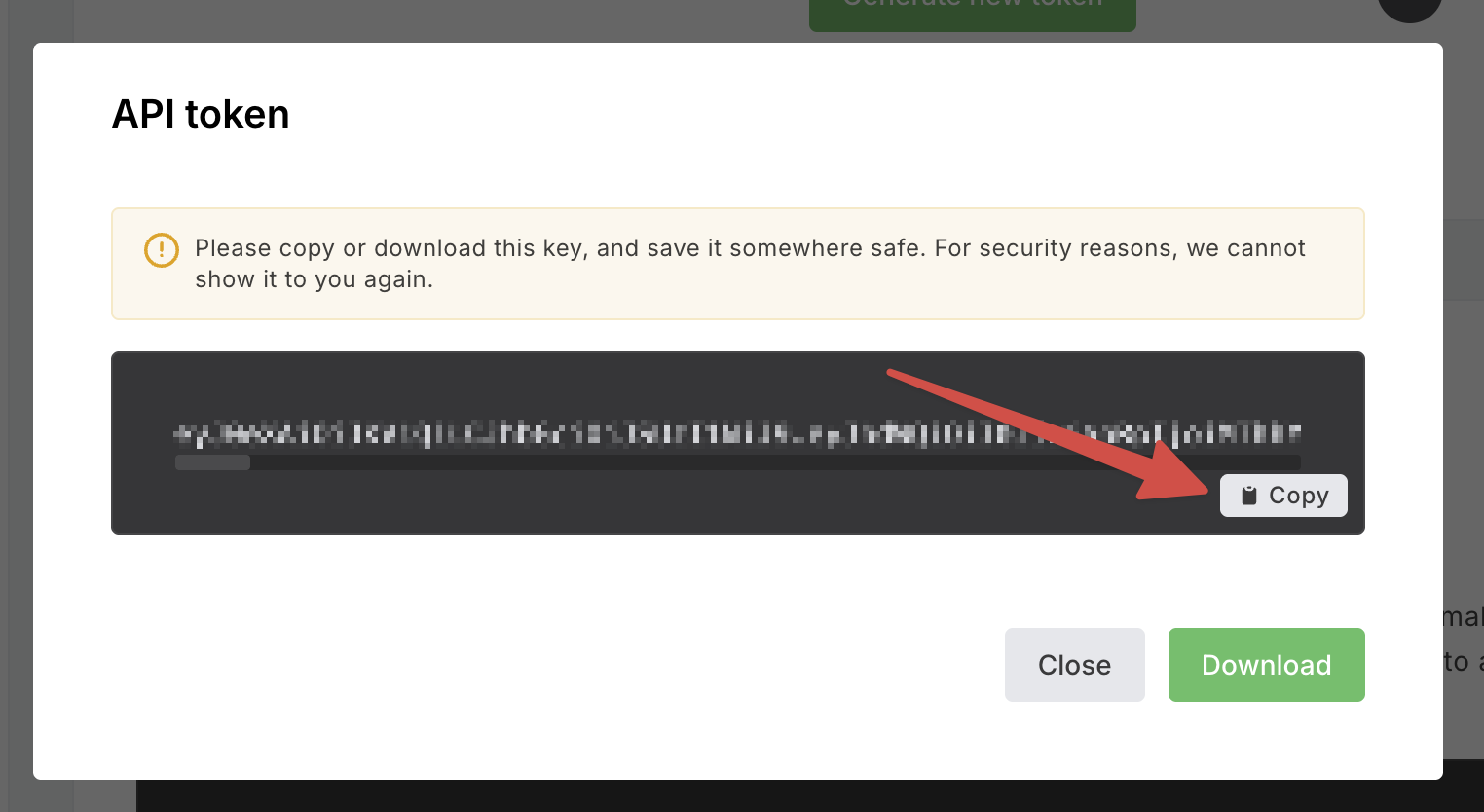
Click Copy. MailerLite shows the token only once.
Connect it to Textiful
-
In Textiful, go to Settings > Integrations.
-
Under CRM and email tools, click Connect MailerLite.
-
Paste the token into API key and click Submit.
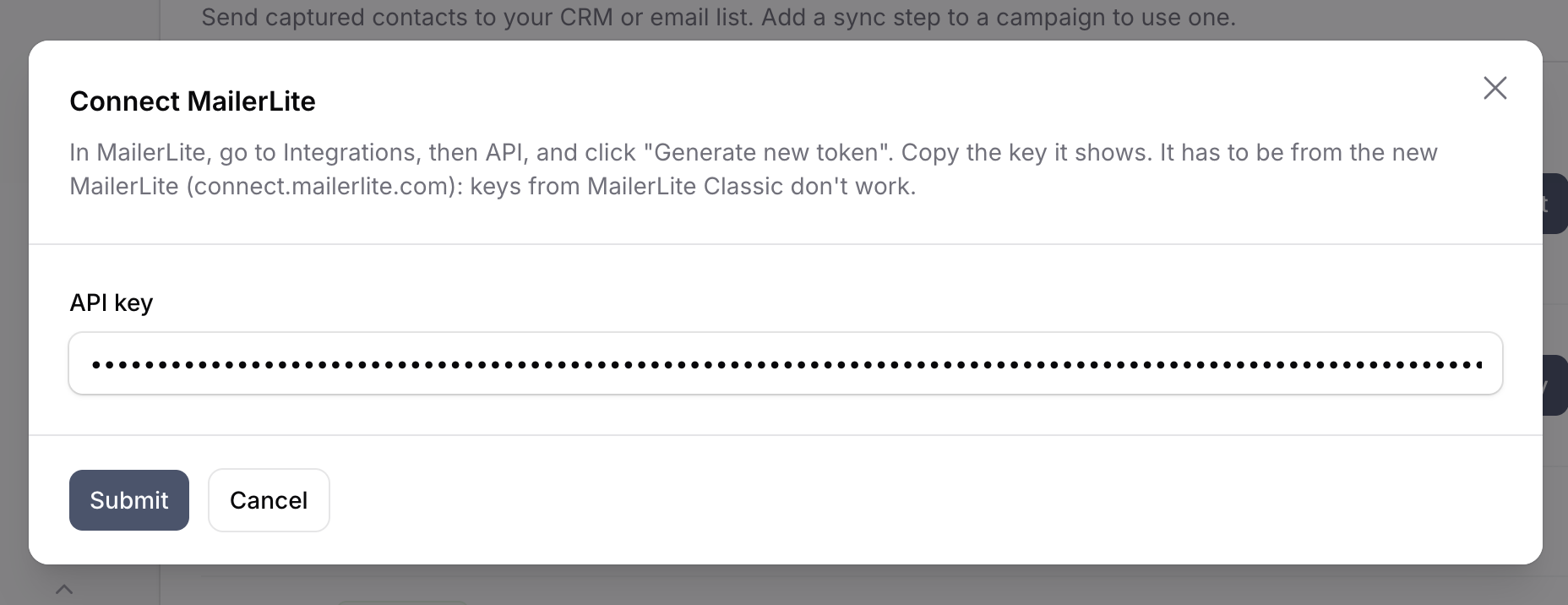
-
Textiful checks the key with MailerLite before saving it. You'll see "MailerLite connected."
Use Test connection at any time to check the account is still reachable.
Add the step to a flow
- Open the flow under Data Capture Flows.
- Make sure the flow has an Ask for email step.
- Click the + below that step (or Add a step), and under Integrations choose Add to MailerLite.
- Under Sync additional data, check which Textiful fields go to which MailerLite fields. The step starts with the ones your flow collects, such as First name to Name, Last name to Last name and Phone number to Phone. Click Add data mapping to send another answer to one of your MailerLite fields, or the bin icon to stop sending one.
- Optionally, turn on Require double opt-in.
- Optionally, choose MailerLite groups to add people to, and automations under Start MailerLite automations.
- Click Add & save.
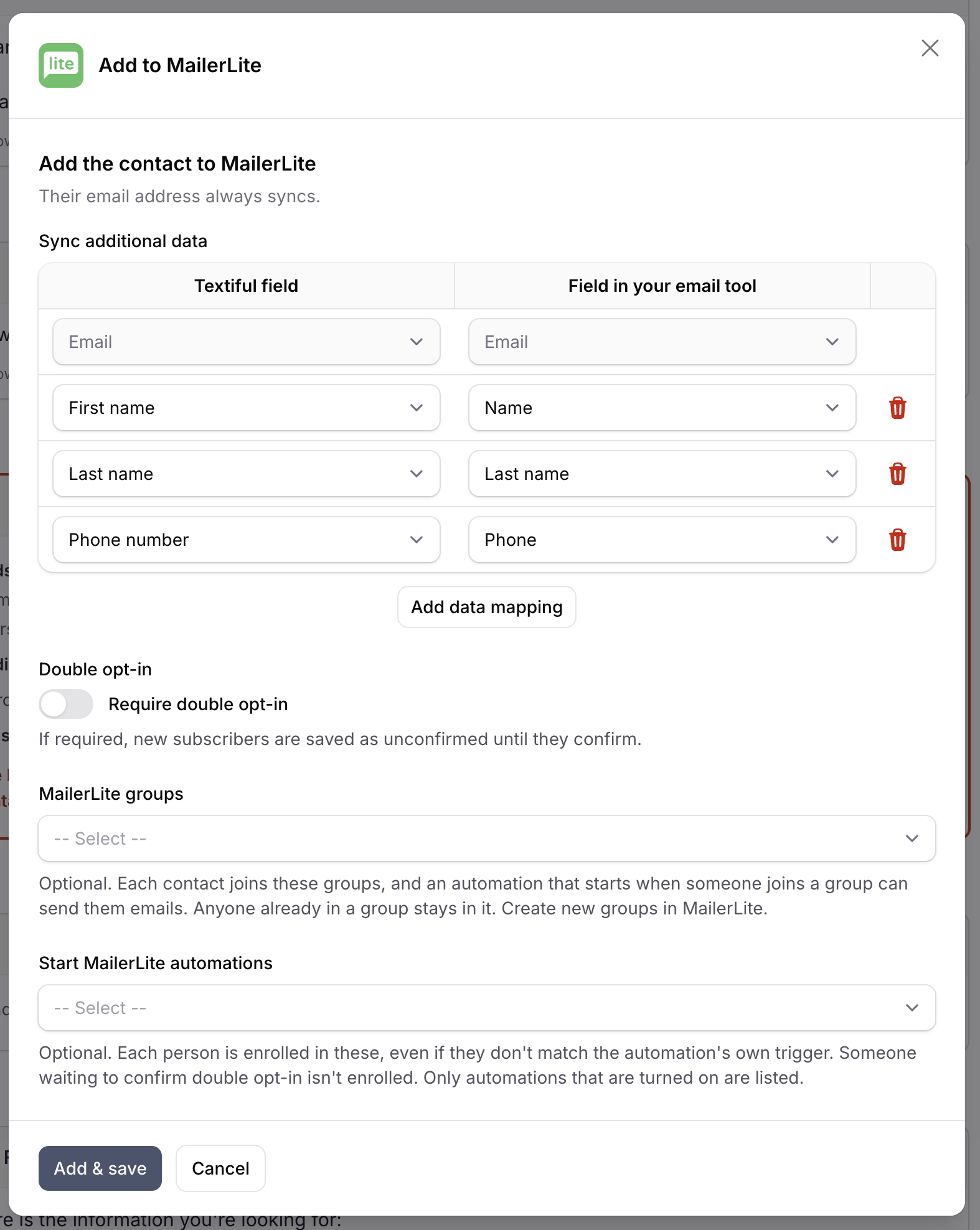
Groups, automations and fields are listed by name from your MailerLite account. To use a new group or field, create it in MailerLite first. Only automations that are turned on are listed.
What gets sent
The step runs when someone reaches it. Textiful adds them to MailerLite by email address, which always syncs, along with every field mapped under Sync additional data.
- Groups: they join every group you chose. Anyone already in a group stays in it.
- Automations: they're enrolled in the automations you chose, even if they don't match the automation's own trigger. You can also start an automation in MailerLite when someone joins a group.
- Double opt-in: with Require double opt-in on, new subscribers stay unconfirmed until they click MailerLite's confirmation email, and aren't enrolled in automations until then.
- Existing subscribers keep their status. Textiful never resubscribes someone who unsubscribed, bounced or was marked as junk.
Check that it worked
- The contact's timeline shows the MailerLite sync.
- The Sync and delivery log on Settings > Integrations lists each send, its status, and any error from MailerLite. Use Retry on a failed send once you've fixed the cause.
- If a group the step uses is deleted in MailerLite, the flow builder flags the step. Choose the groups again.
Disconnect or change the key
To use a different token, click Update API key on the Integrations page and paste the new one. Click Disconnect to remove MailerLite; MailerLite steps fail until you connect again.
Frequently asked questions
- Where do I find my MailerLite API key?
- In MailerLite, go to Integrations, then API, and click Generate new token. Copy the token it shows. MailerLite only shows it once, so paste it into Textiful straight away.
- Does it work with MailerLite Classic?
- No. Textiful connects to the current MailerLite (connect.mailerlite.com). Keys from MailerLite Classic don't work.
- Should I turn on the IP allowlist for the token?
- No. Choose All IPs allowed. With an allowlist, MailerLite turns away Textiful's requests.
- Will Textiful resubscribe someone who unsubscribed?
- No. Anyone who unsubscribed, bounced or was marked as junk in MailerLite is left as they are. People already in MailerLite keep their status and their groups.