Connect Constant Contact
Click Connect with Constant Contact under Settings > Integrations and allow access, then add an Add to Constant Contact step to a flow to add people to your lists and tags.
Connect Constant Contact under Settings > Integrations by signing in and allowing access. Then add an Add to Constant Contact step to a flow, after the email question. Everyone who reaches that step is added to Constant Contact, on the lists and with the tags you choose.
Steps
Connect Constant Contact
-
In Textiful, go to Settings > Integrations.
-
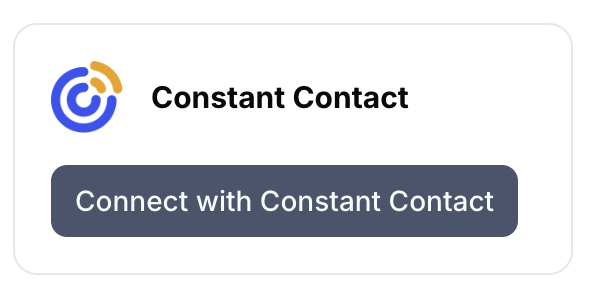
Under CRM and email tools, find Constant Contact and click Connect with Constant Contact.
-
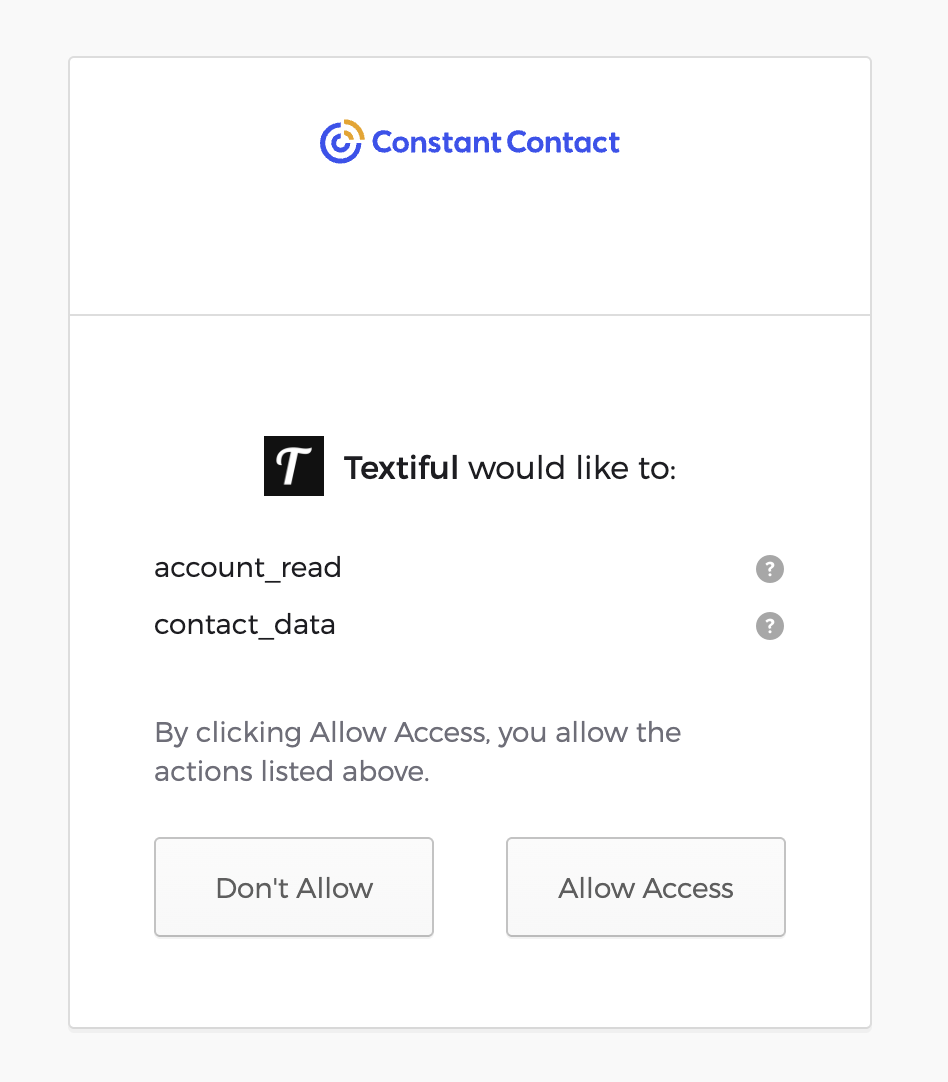
Sign in to Constant Contact if it asks. It then asks to let Textiful see your account (account_read) and manage your contacts (contact_data). Click Allow Access.
-
You're taken back to Textiful and see "Constant Contact connected." The card shows the name of the Constant Contact account you connected.
If the card later shows an error, click Reconnect Constant Contact and allow access again.
Add the step to a flow
- Open the flow under Data Capture Flows.
- Make sure the flow has an Ask for email step.
- Click the + below that step (or Add a step), and under Integrations choose Add to Constant Contact.
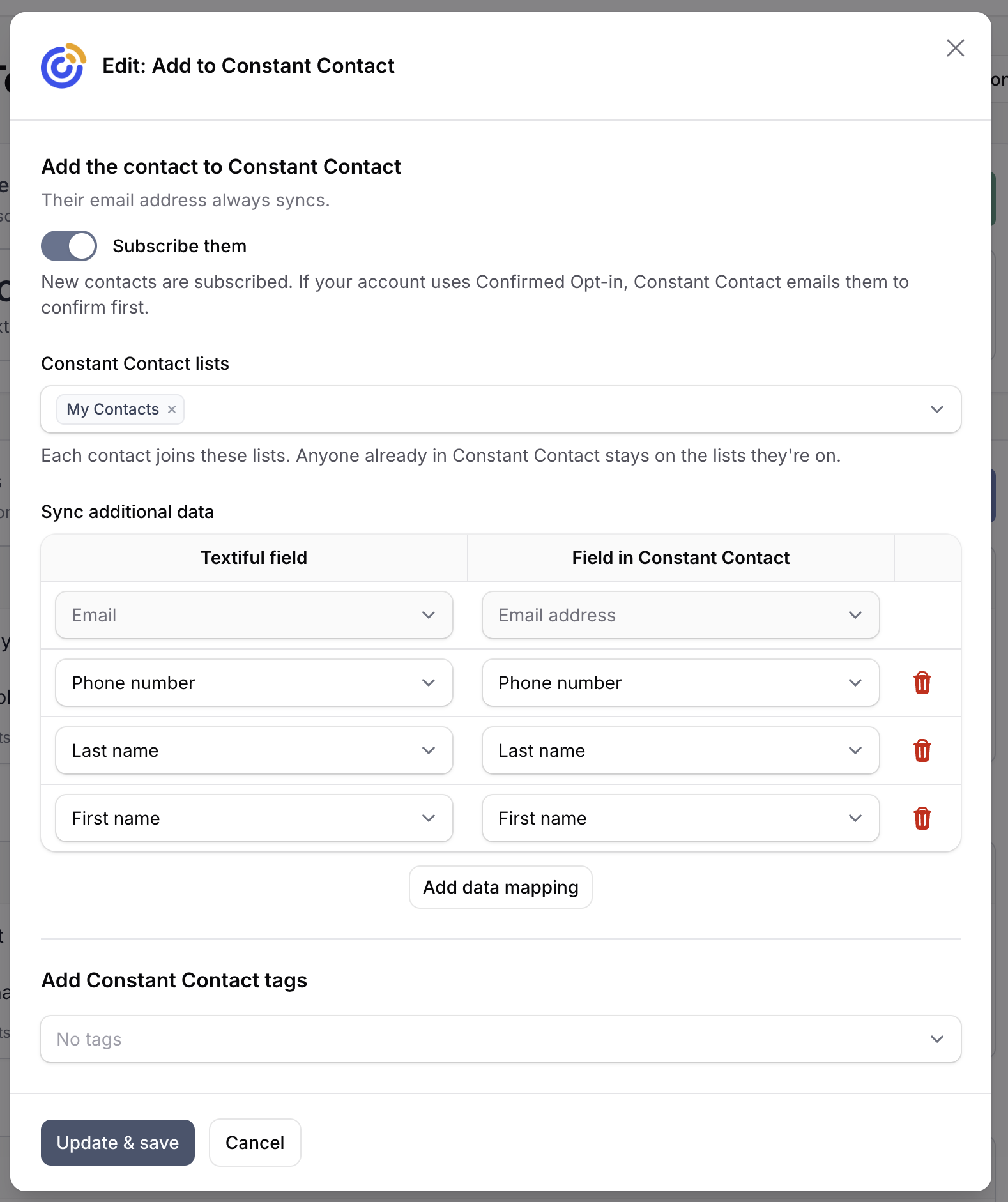
- Leave Subscribe them on, so new contacts can be sent your campaigns.
- Choose one or more Constant Contact lists.
- Under Sync additional data, check which Textiful fields go to which Constant Contact fields. The step starts with the ones your flow collects, such as First name, Last name and Phone number. Click Add data mapping to send another answer to Job title, Company or one of your Constant Contact custom fields, or the bin icon to stop sending one. A highlighted row is a field nothing above the step asks for.
- Optionally, choose tags under Add Constant Contact tags.
- Click Add & save.
Lists, tags and custom fields are listed by name from your Constant Contact account. To use a new one, create it in Constant Contact first.
What gets sent
The step runs when someone reaches it. Textiful adds them to Constant Contact by email address, which always syncs, along with every field mapped under Sync additional data. Their phone number goes in Constant Contact's own phone field, as a mobile number.
- Lists: they join every list you chose. To send a welcome series, use a Constant Contact automation that starts when a contact joins a list. Constant Contact's Welcome Email doesn't go to contacts added through an integration.
- Tags: they're given every tag you chose. On Constant Contact's Premium plan, a custom automation path can also start when a tag is added.
- Subscribe them: on, new contacts get permission to be emailed. If your account uses Confirmed Opt-in, Constant Contact emails them to confirm first. Off, they're saved without permission, so they won't get your campaigns.
- Existing contacts keep their email permission, lists, tags and other details. Textiful adds the step's lists, tags and fields to what they already have. Anyone who unsubscribed is left as they are.
- Text messages from Constant Contact: texting your keyword isn't consent to Constant Contact's SMS marketing, so Textiful never turns that on.
Frequently asked questions
- Do I need an API key for Constant Contact?
- No. Click Connect with Constant Contact in Textiful, sign in to Constant Contact if it asks, and click Allow Access. There's nothing to copy or paste.
- Are new contacts subscribed?
- Yes, by default. Turn off Subscribe them on the step to save new contacts without permission to email them. If your Constant Contact account uses Confirmed Opt-in, Constant Contact emails new contacts to confirm first.
- Can I add people to more than one list?
- Yes. Choose as many lists as you like on the step. At least one is required.
- Will Textiful resubscribe someone who unsubscribed?
- No. Anyone who unsubscribed in Constant Contact is left exactly as they are. People already in Constant Contact keep their email permission, their lists and their tags.